How to Connect Vizio TV to Hotspot: A Step-by-Step Guide
Streaming content on your Vizio TV can be a game-changer, especially when you're on the go or without a fixed internet setup. Using a mobile hotspot to connect your Smart TV allows you to access countless entertainment options without the constraints of traditional internet connections.
To connect your Vizio TV to a mobile hotspot, ensure both devices are turned on. Then, access the TV’s menu with your remote, go to the "Network" options, and select your hotspot from the list.
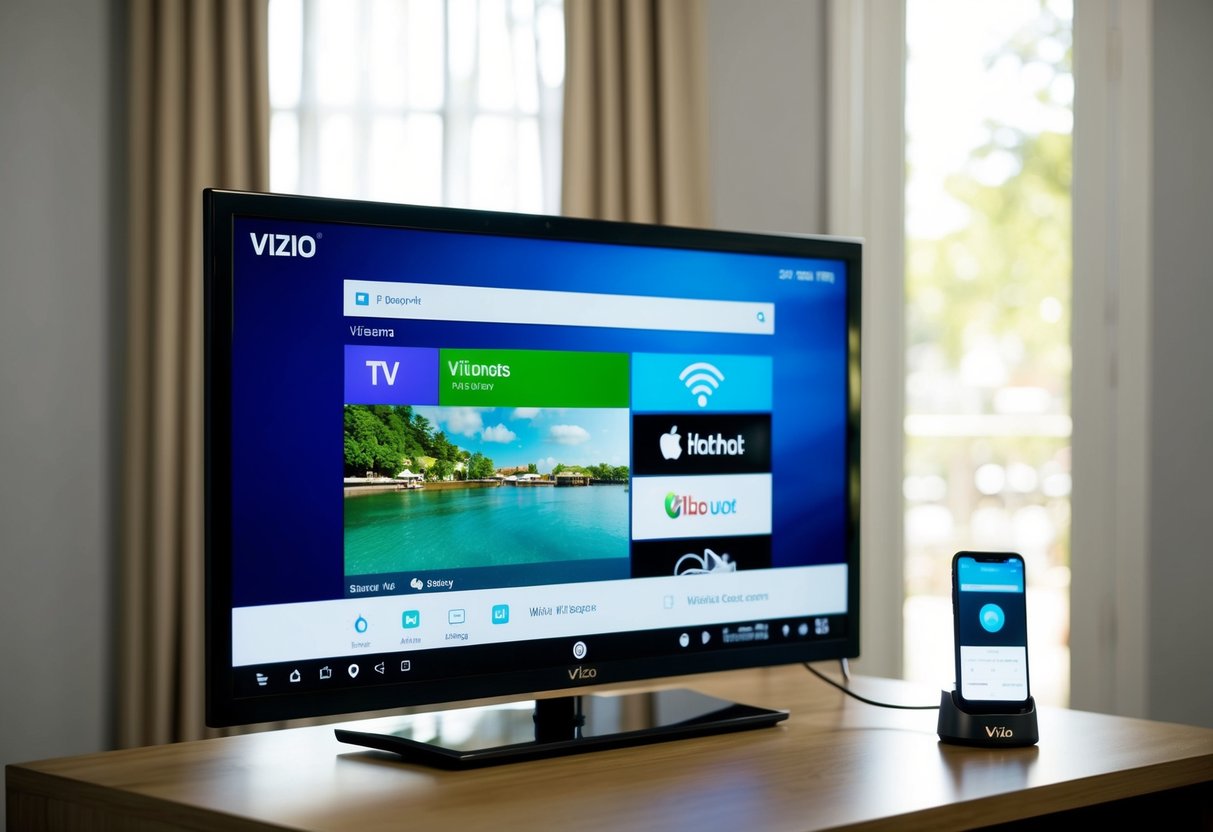
Make sure your mobile device's hotspot feature is active and that you have enough data to support streaming. A strong and stable internet connection is crucial to enjoy a seamless viewing experience.
Once connected, your TV will allow you to explore a vast range of entertainment options, from movies to music and even interactive apps.
Optimizing your streaming experience involves setting up the devices correctly and ensuring that your internet connection is robust. If you face any issues, you can troubleshoot common connection problems or explore additional ways to connect.
Requirements for Connecting to a Hotspot
To connect your Vizio Smart TV to a mobile hotspot, certain requirements must be met. These include having a compatible TV model with Wi-Fi capabilities, ensuring your mobile hotspot is functional, and understanding how data usage might affect your streaming experience.
Compatible Vizio Smart TV Models
Not all Vizio Smart TVs can connect to a mobile hotspot. To determine compatibility, ensure your TV can connect to Wi-Fi networks. Most recent models come with this capability, allowing you to access streaming services directly.
If you're unsure, check your TV's user manual or visit Vizio's website for model specifications. Older models might lack built-in Wi-Fi, meaning they cannot connect to a mobile hotspot without additional hardware, like a streaming stick.
Checking Mobile Hotspot Capability
Your mobile device needs to have a hotspot feature, which shares its cellular data connection with other devices. Ensure this feature is activated in your device settings.
Check signal strength and data plan limitations, as these affect streaming quality on your Vizio TV. Mobile hotspots use 3G, 4G, or 5G networks. Confirm that your device's network connection is stable and can support the data load required for streaming.
Understanding Data Usage for Streaming
Streaming content over a mobile hotspot can rapidly consume your data allowance. High-definition video streaming requires a strong connection and can use multiple gigabytes per hour.
If your plan has a data cap, keep track of usage to avoid extra charges. Some streaming services provide data-saving options, which reduce data use by lowering video quality.
Understanding these aspects helps manage data costs while enjoying your Vizio Smart TV.
Setting Up Your Mobile Hotspot
To connect your Vizio TV to a mobile hotspot, make sure your device is capable of tethering. You will need to configure settings specific to Android or iOS, choosing a secure network name and password to maintain connectivity.
Activating Tethering on Android Devices
First, open the Settings app on your Android device. Navigate to the Network & Internet section, then select Hotspot & Tethering.
Choose Wi-Fi Hotspot and toggle it on. Under this option, set your Network Name (SSID) and Hotspot Password.
Make sure to use a strong, memorable password to secure your connection. Double-check that you have cellular data enabled, as your hotspot relies on it.
Monitor data usage to avoid unwanted charges.
Enabling Hotspot on iOS Devices
Begin by opening the Settings app on your iPhone. Tap on Personal Hotspot and switch the toggle on.
If prompted, confirm Bluetooth and Wi-Fi connections are active. Assign a Wi-Fi Password, which ensures only authorized devices can connect.
Your device’s name will appear as the network's SSID. Remember to use your cellular data plan wisely, as the connection cost depends on your provider.
Configuring Hotspot Settings
Adjusting hotspot settings can enhance performance and security. For both Android and iOS, find the hotspot or tethering options in settings.
You can modify the SSID and password anytime, ensuring they are not easily guessable. Consider disabling automatic connection options to prevent unknown devices from linking to your hotspot.
Regularly reviewing settings helps maintain efficient and secure access for your Vizio TV.
Preparing Your Vizio TV for Connection
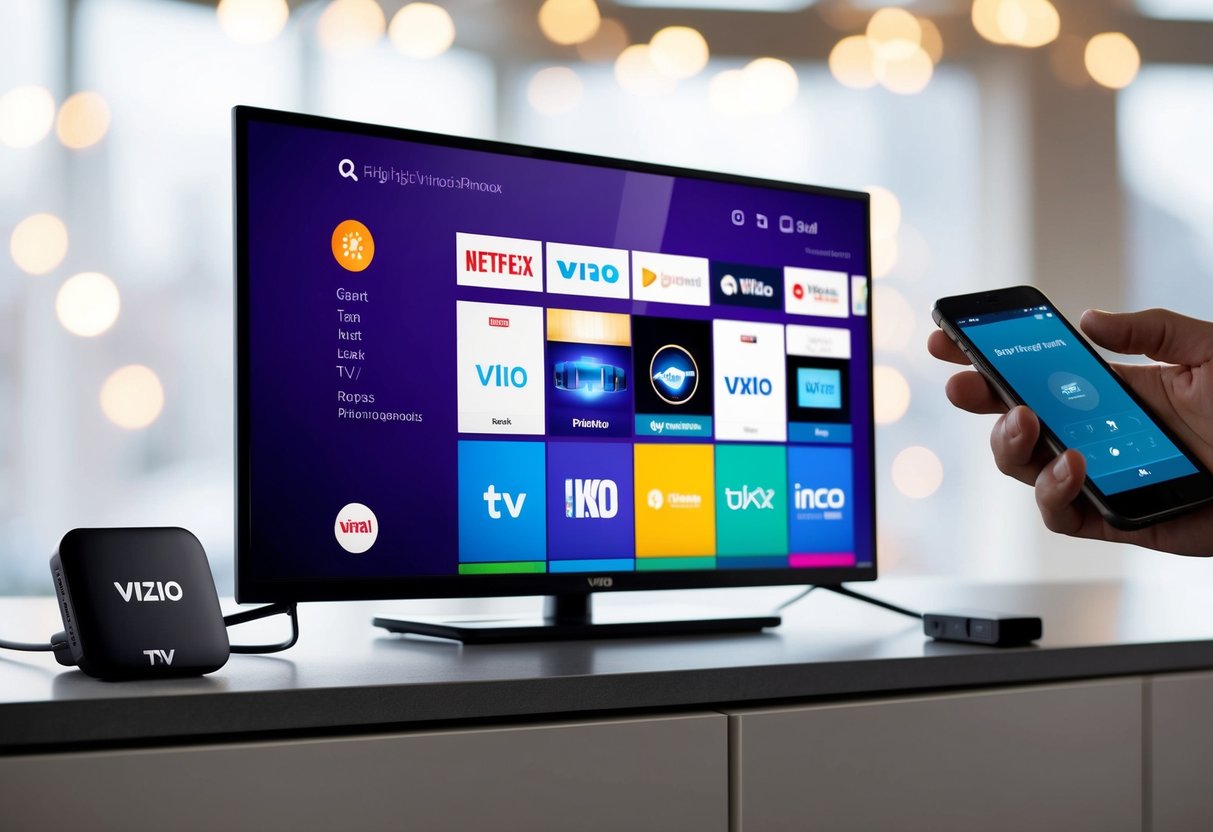
Getting your Vizio TV ready to connect to a hotspot involves accessing the network settings, ensuring your firmware is current, and resetting network configurations if needed. Follow these steps carefully to ensure a smooth connection process.
Accessing the Network Settings Menu
Start by turning on your Vizio TV and pressing the Menu button on your remote. Navigate to the Network section. This menu is where you control all Wi-Fi connections.
Once there, you'll find options to view available networks. Use the arrow buttons to highlight your hotspot. You will need to enter the password for the network if prompted.
Double-check the password for any capital letters or special characters. Following this, you can proceed to connect.
If everything is correct, your TV should connect without issue. Ensure you patiently wait while the connection establishes and keep your hotspot device close to ensure strong signal strength.
Checking Firmware Updates
Before connecting, it’s important to ensure your Vizio TV has the latest firmware. Select Settings from the main menu, and then go to System.
Look for a Check for Updates option. Select it to see if there are any new firmware updates available. The TV will automatically download and install updates if they are found.
Installing updates not only fixes bugs but also enhances compatibility with wireless connections. Always let the updates finish before trying to connect to a hotspot, as incomplete updates may cause issues.
Resetting Network Settings If Necessary
If you've followed the steps above and still face issues, consider resetting your network settings. Return to the Network section in the settings menu and look for a Reset Network option.
Executing a network reset will erase all stored Wi-Fi networks and passwords. Confirm the reset and allow your TV a moment to clear its settings.
After the reset, return to the network menu and reconnect using your hotspot's details. This can resolve persistent connection issues and gives your TV a clean slate to work from.
Connecting Vizio TV to the Hotspot
To connect your Vizio TV to a mobile hotspot, you need to select your network, enter the correct password, and troubleshoot any connectivity issues that may arise. Following these steps will ensure a smooth and successful connection.
Selecting Your Mobile Hotspot Network
Start by turning on your Vizio TV and your mobile hotspot. Using your TV remote, press the Menu button and go to the Network or Settings section. Here, look for an option like Wi-Fi or Wireless.
Your TV will scan for available networks. Make sure to identify the SSID, which is the network name of your mobile hotspot.
Select this network name from the list. Confirm your selection to move on to the next step.
Entering the Correct Password
After selecting your hotspot network, you may be prompted to enter a password. This password is often set on your mobile device when the hotspot was activated.
Use the onscreen keyboard to input the correct password. Be careful—entering incorrect characters is a common issue.
Once the password is entered, select the option to connect. Your TV should now establish a connection with your hotspot.
Resolving Connectivity Issues
If you encounter connectivity issues, there are a few troubleshooting steps you can try. First, ensure your mobile hotspot is within range and that its signal is strong.
If the connection fails, double-check that the network name and password are entered correctly. Sometimes a simple typo can cause problems.
For persistent issues, restart both your Vizio TV and mobile hotspot. This can resolve many minor glitches that might be disrupting the connection.
Optimizing the Streaming Experience
To make the most of your Vizio TV connected to a hotspot, you need to ensure a strong signal, manage data usage, and access various streaming platforms. These steps help you enjoy streaming without interruption.
Assessing Signal Strength for Reliable Connection
Check the strength of your mobile signal to maintain a consistent streaming experience. Weak signals often lead to buffering and low-quality video.
Position your hotspot near a window or in a location with fewer obstructions to boost signal reception. Keep an eye on signal bars displayed on your device. A full signal bar often means more stable and smoother streaming.
If possible, use a specialized app to measure signal strength for better accuracy. Place your TV and hotspot closer together to reduce signal interference, which can be caused by walls or other electronic devices.
Adjusting Video Quality to Manage Data Usage
When streaming video, adjust the video quality settings to help manage data usage. Many streaming platforms like Netflix, Hulu, and Amazon Prime provide settings for different video qualities.
Opt for standard definition rather than HD or Ultra HD if you have limited data. This small change can result in significant data savings without greatly affecting your viewing experience.
Some services automatically adjust video quality based on available bandwidth, but you also have the option to manually set it. Check the settings menu of each app to customize these options.
Balancing video quality with data limits can improve your streaming time without exceeding your data cap.
Accessing Various Streaming Platforms
Your Vizio TV can access numerous streaming platforms, but you must ensure each app is installed and logged in.
Browse to the app menu, then download services like Netflix, Hulu, or Amazon Prime if not already available. Make sure your subscription details are up to date to avoid login issues.
Vizio SmartCast allows you to cast from your mobile device to the TV, expanding your content choices beyond just built-in apps.
Remember to update apps regularly to benefit from new features and security enhancements. Each platform may offer unique settings that can further optimize your streaming experience, such as customizing watchlists or enabling parental controls to personalize your viewing.
Troubleshooting Common Connection Issues
Sometimes, connecting your Vizio TV to a mobile hotspot might have a few bumps. Here are some problems you might face and how to fix them. These steps cover rebooting devices, checking network compatibility, and ensuring a smooth link between your TV and hotspot.
Rebooting Your Vizio TV and Mobile Hotspot
To fix connection problems, start by rebooting your Vizio TV and mobile hotspot. Turn off your Vizio TV and unplug it from the power source for about 10 seconds.
Restart your mobile hotspot by turning off the hotspot feature on your phone, then turning it back on. Plug your TV back in and turn it on.
After both devices restart, try connecting to the hotspot again. This process can resolve temporary networking glitches by refreshing the device systems.
Verifying Network Band Compatibility
Your mobile hotspot might operate on different network bands like 2.4 GHz or 5 GHz. Verify if your Vizio TV supports the same band as your hotspot.
Check your TV's Wi-Fi settings under the network menu to see the available connections.
Some Vizio TVs may not connect to 5 GHz bands. If this is an issue, switch your mobile hotspot to 2.4 GHz. This adjustment can improve connectivity if band compatibility was the problem.
Ensuring Seamless Connection
Make sure there are no physical barriers between the TV and the mobile hotspot that could block the Wi-Fi signal. Position both devices in open areas where they can "see" each other.
Also, check for conflicting devices using the same Wi-Fi channel, like other hotspots or networks nearby.
Change your mobile hotspot settings to a less crowded channel if interference persists.
Keeping software updated on your TV and phone can also support a seamless connection by fixing bugs that hinder network performance.
Additional Connection Methods
When connecting your Vizio TV to a network, using an Ethernet cable or exploring wireless options like Bluetooth can provide reliable alternatives. These methods offer flexibility and can enhance your viewing experience.
Using an Ethernet Cable for Wired Connection
To connect your Vizio TV using an Ethernet cable, you'll need a compatible Ethernet port on the back of your TV. Connecting through a wired network can offer more stability than wireless.
Steps to Connect:
- Plug one end of the Ethernet cable into your TV's Ethernet port.
- Connect the other end to your router or modem.
- Go to the TV's network settings and select the wired network option.
A wired connection typically provides a faster and more stable internet connection. This can help when streaming high-definition content by reducing buffering or connection interruptions. If you often experience Wi-Fi issues, using an Ethernet cable is a reliable alternative.
Alternative Wireless Connection Options
In addition to standard Wi-Fi, there are alternative wireless connection options. One approach involves using a Bluetooth adapter if your TV supports it.
Steps to Connect with Bluetooth Adapter:
- Insert the Bluetooth adapter into an available USB port on your TV.
- Put the adapter in pairing mode.
- Access your TV's network settings and search for available Bluetooth connections.
Keep in mind, Bluetooth connections might not be ideal for high-definition streaming due to potential lower bandwidth compared to Wi-Fi. If you're exploring wireless options, ensure your devices are compatible and offer sufficient speed for what you plan to watch. Different wireless methods can offer flexibility if you're unable to use a direct Wi-Fi connection.
Contacting Vizio Support for Assistance
If you're facing trouble connecting your Vizio TV to a mobile hotspot, Vizio Support can help. They can offer advice on your TV's internet connectivity.
Here’s how you can reach them:
- Phone: Call their customer support for quick help.
- Website: Visit Vizio's official website for live chat or email options.
- User Manual: Check your Vizio TV manual for support contact details.
Using online content can also help you troubleshoot. The official site often has guides and FAQs that cover common connectivity issues.
For specific problems or if you're unable to follow the steps in guides, direct contact is best. Vizio Support can provide insights tailored to your TV model and hotspot compatibility.
Remember:
Keep your TV model number and details about your internet connection handy. It will help Vizio's team give you precise help quickly.
Frequently Asked Questions
Connecting a Vizio TV to a hotspot involves several steps, and sometimes issues can arise. Here are some answers to common questions to help you get connected and troubleshoot issues.
How do I connect my Vizio smart TV to my mobile hotspot?
First, ensure your mobile hotspot is active. On your Vizio TV remote, press the "Menu" button. Navigate to "Network" or "Settings," and select the "Wi-Fi" or "Wireless" option. Choose your hotspot from the list that appears and enter the password if needed.
Why is my Vizio TV not connecting to my phone's hotspot?
Ensure your hotspot is active and the signal is strong. Check if the phone's data or hotspot settings allow connections. Verify that the TV's Wi-Fi is enabled and that it’s selecting the correct network.
What steps are involved in tethering a Vizio TV to an iPhone hotspot?
Activate the hotspot on your iPhone. On your Vizio remote, press "Menu." Go to "Network" settings and select the iPhone hotspot from the available networks. Enter your iPhone's hotspot password if prompted to complete the connection.
How can I troubleshoot a Vizio TV that won't detect hotspots?
Ensure both your TV and hotspot device are in range. Restart both devices to refresh their network settings. Check if the TV firmware is up to date. You might need to reset the TV's network settings as a last resort.
Can I use a USB tethering method to connect my Vizio TV to a hotspot?
Vizio TVs generally do not support USB tethering for internet connections. Wireless connection through Wi-Fi or using an Ethernet cable with a separate router is recommended for accessing hotspots.
What to do when a Vizio TV indicates 'No Network Detected' but is connected to a hotspot?
Verify that the hotspot is working by connecting another device to it. Restart the TV and hotspot.
Check the Wi-Fi settings on your TV to ensure it is set to the correct network. If the issue persists, consider resetting network settings on your TV.